
How to Split a PDF into Separate Pages or Files
Wondering how to split pages in PDF or how to separate pages in PDF? You can split a PDF into separate pages or pull out just the pages you need, free, in under a minute. Upload the file, choose which pages to keep — a range like pages 5–12, a handful of individual pages, or every page saved as its own file — and download the result. No account, no software to install, nothing uploaded to a server.
What "splitting a PDF" actually means
When people look up how to split a PDF, they usually want one of three different things. It helps to know which one you need before you start:
- Extract pages — take pages 4–9 out of a 40-page document and save them as a new, smaller PDF. The original file stays untouched. This is the most common case: you need part of a document, not all of it.
- Split into individual pages — turn one 20-page PDF into 20 separate one-page PDFs. Handy when every page is really its own document: a stack of scanned receipts, a batch of certificates, or forms that need to be filed one by one.
- Split into chunks — divide a huge file into smaller files of, say, 10 pages each, so every piece is small enough to email or upload to a portal with a file-size limit.
Under the hood these are all the same operation — selected pages get copied into new files — and the Split PDF tool handles all three. Pages are copied exactly as they are, so text stays selectable, links keep working, and nothing gets re-rendered or degraded.
How to split a PDF into separate pages: step by step
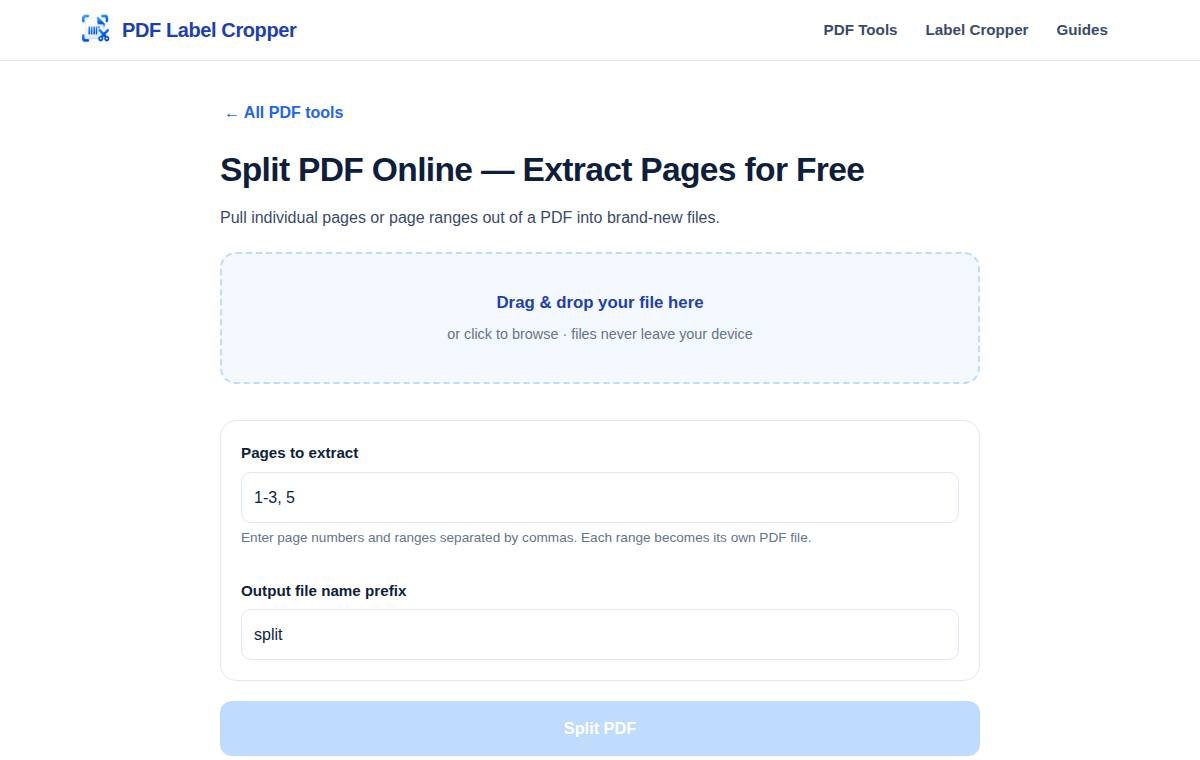
- Open the Split PDF tool in your browser. It works on computers and phones — nothing to install.
- Upload your PDF. Drag the file into the upload area or tap to browse your files. Everything is processed on your own device rather than a remote server, so even a 200-page file stays private.
- Type the pages you want. Use the format 1-5, 8, 11-14 — individual numbers and ranges separated by commas. Page 1 is the very first page of the file, even if the document's printed numbering starts elsewhere.
- Set a file-name prefix (optional, e.g. invoice-q1) so the outputs are easy to recognize, then press "Split PDF".
- Download each file. Every range you typed becomes its own PDF with its own download link — for example invoice-q1-pages-1-5.pdf. Save them right away so you don't mix them up later.
How to extract specific pages from a PDF
Extracting pages is the everyday version of splitting a PDF, and it's worth getting comfortable with the page-range shorthand, because nearly every PDF tool uses it:
- A continuous range: 4–9 grabs pages 4, 5, 6, 7, 8, and 9.
- Individual pages: 2, 7, 15 grabs exactly those three pages, in that order.
- Mixed: 1–3, 10, 18–20 combines both. The pages land in your new file in the order you listed them.
A quick example
Say your bank emails a 32-page annual statement, but your home-loan application only asks for the last three months — pages 24–32. Instead of uploading the whole thing (and sharing nine extra months of transactions), you extract pages 24–32 into a new PDF and submit only that. Smaller file, less private data shared, and the bank officer sees exactly what's asked for.
How to split a large PDF into smaller files
Some files are simply too big for their destination. Email attachments typically bounce above 25 MB, many government and college portals cap uploads at 5–10 MB, and WhatsApp compresses documents awkwardly. When one PDF won't fit, splitting it into chunks is cleaner than compressing it into mush.
The approach: decide a chunk size that fits your limit — 10 pages per file is a good starting point for scanned documents — then extract 1–10, 11–20, 21–30, and so on. Name each file clearly (notes-part1.pdf, notes-part2.pdf) so the recipient can reassemble them in order. If a chunk is still too large, compress it before sending rather than splitting further.
When splitting a PDF saves the day
- Loan and visa paperwork: banks and embassies ask for specific statement pages or particular supporting documents. Extract exactly those pages instead of handing over your entire financial history.
- UPSC and exam preparation: coaching institutes sell 500-page compilations; split out one subject or one month of current affairs at a time so your tablet isn't lugging the whole syllabus.
- Freelancer invoices: pull this month's invoices out of a year-long accounts file when the CA asks for them.
- Removing junk pages: that blank page, the "this page intentionally left blank" page, the ad at the end of a downloaded ebook — extract everything except those pages and the file is instantly cleaner.
- Seller documents: GST filings and marketplace reports often bundle many sellers or months in one PDF. Split out just your section before forwarding it to your accountant.
Split PDF vs. the alternatives
- Screenshots of pages: quick but low-resolution and fiddly. Splitting keeps the original quality and selectable text.
- Print-to-PDF of selected pages: works in a pinch, but re-renders pages and can change fonts and layout. Direct page extraction is lossless.
- Asking the sender for a new file: fine if the sender is responsive; not fine at 11 pm before a deadline. Splitting takes a minute and needs nobody's help.
Common problems when you split a PDF (and how to fix them)
- The wrong pages came out: you counted printed page numbers instead of file pages. Re-extract, counting from the very first page of the file.
- The PDF asks for a password: owner-password-protected files can't be split until unlocked. If it's your file, open it with the password in a PDF reader and print-to-PDF an unlocked copy first — then split that.
- Output pages look identical but the file is huge: splitting copies pages as-is, so a 100 MB scan split in half gives two ~50 MB files. That's expected — compress the pieces afterwards if size matters.
- Bookmarks and links broke: bookmarks point to page numbers in the original file, so they may not survive extraction cleanly. For reading and submitting, this rarely matters; for navigation-heavy documents, keep the original alongside the extract.
- The tool won't accept the file: check the file isn't corrupted (open it in your reader first) and that it's actually a PDF, not a renamed image or Word file.
Your documents never leave your device
Splitting often involves sensitive files — bank statements, ID proofs, contracts, medical reports. The tool above processes everything locally in your browser: the file is never uploaded to any server, never stored anywhere, and never seen by anyone. When you're choosing any free PDF tool, that property matters more than any feature list — if a "free" splitter requires uploading your documents to somebody's cloud, your private files become their data.
Once you've split your file, you might want to merge selected pages back together in a new order, compress the result for emailing, or fix any sideways pages before sending it off.
Frequently asked questions
Is it free to split a PDF online?
Yes. The Split PDF tool is completely free with no account, no page limits, and no watermark added to your files.
How to separate pages in PDF?
Use the free Split PDF tool: upload your PDF, type the pages or ranges you want (like 1-3, 5), and press "Split PDF". Each range becomes its own PDF file — separating a document into individual pages takes under a minute.
How to split pages in PDF without software?
No software needed — the Split PDF tool runs entirely in your browser. Upload the file, enter page ranges like 1-3, 5, and download each part as a separate PDF. Nothing is installed and nothing is uploaded.
How to split PDF pages into separate files?
Upload your PDF to the free Split PDF tool, type the page ranges you want (like 1-3, 5, 8-10), and press "Split PDF". Each range is saved as its own separate PDF file — splitting a long document into parts takes under a minute.
How to separate a page from a PDF?
To extract one page from a PDF, open the Split PDF tool, upload the file, and type just that page number — for example "7". You will get a new one-page PDF with only that page, keeping the original quality.
How do I split a PDF file into pages?
The Split PDF tool splits a PDF file into pages in your browser: upload the file, list the pages or ranges, and download each part as its own PDF. It is free, needs no signup, and works on phones and computers.
How do I split PDF pages in half?
To split a PDF in half, enter the first half as one range and the second half as another — a 10-page PDF becomes “1-5, 6-10”. The Split PDF tool downloads two files, one for each half.
Can I split a large PDF for free?
Yes. This site's free PDF splitter has no page limit and no file-size limit set by us, so large PDFs split just like small ones — processing happens in your browser, so speed depends on your device.
Can I split and merge PDFs?
Yes — split a file with the Split PDF tool, then recombine the parts in any order with the Merge PDF tool. Both are free, run in your browser, and need no signup.
How do I extract pages from a PDF?
Upload the PDF to the Split PDF tool, enter the pages you want as a range (like 4-9) or individual pages (like 2, 7, 15), and download the new file containing only those pages.
Can I split a PDF into individual pages, one file per page?
Yes. Type every page number separated by commas — 1, 2, 3 and so on — and each page is saved as its own one-page PDF, each with its own download link.
Will splitting a PDF reduce its quality?
No. Pages are copied exactly as they are — text stays selectable and image quality is unchanged. Splitting is a lossless operation.
Can I split a password-protected PDF?
Not directly. You'll need to unlock it first with the password (open it in a PDF reader and save/print an unlocked copy), then split the unlocked file.
Can I split a PDF on my phone?
Yes. The tool runs in your mobile browser — upload the PDF, pick your pages, and download the result, all on your phone.
Related tools
Split PDF
Pull individual pages or page ranges out of a PDF into brand-new files.
Compress PDF
Shrink oversized PDFs so they're easy to email, upload, and share.
Merge PDF
Combine two or more PDF files into a single document, in whatever order you choose.
Rotate PDF
Straighten sideways scans and upside-down pages in seconds.