
How to Rotate PDF Pages (Fix Sideways or Upside-Down PDFs)
You can rotate PDF pages online for free in a matter of seconds. Upload the file, turn the sideways or upside-down pages 90 or 180 degrees, and download a corrected PDF that opens the right way up everywhere. No signup, no software, and your file never leaves your device.
Why PDFs end up sideways or upside down
Almost nobody rotates a PDF on purpose. Sideways pages happen because of how the file was created, not how you are viewing it:
- Scanners and scan apps: feed a page in landscape orientation, or hold your phone slightly turned while scanning, and every page lands sideways in the PDF. Bulk scans of old documents are the classic culprit.
- Phone photos merged into a PDF: cameras record an orientation flag that some PDF creators ignore, so a photo that looks fine in your gallery appears rotated once it is inside a PDF.
- Mixed-orientation documents: a report that is portrait throughout except one wide spreadsheet or diagram page. That one landscape page looks wrong in a portrait viewer even though the content is fine.
- Someone else's mistake: a colleague or an office sends you a file they scanned sideways. You cannot rescan it - you can only fix the file you received.
The important thing to understand: in most cases the page content is fine and only the page's rotation setting is wrong. Fixing it is a one-click operation per page, not a re-creation of the document.
How to rotate PDF pages: step by step
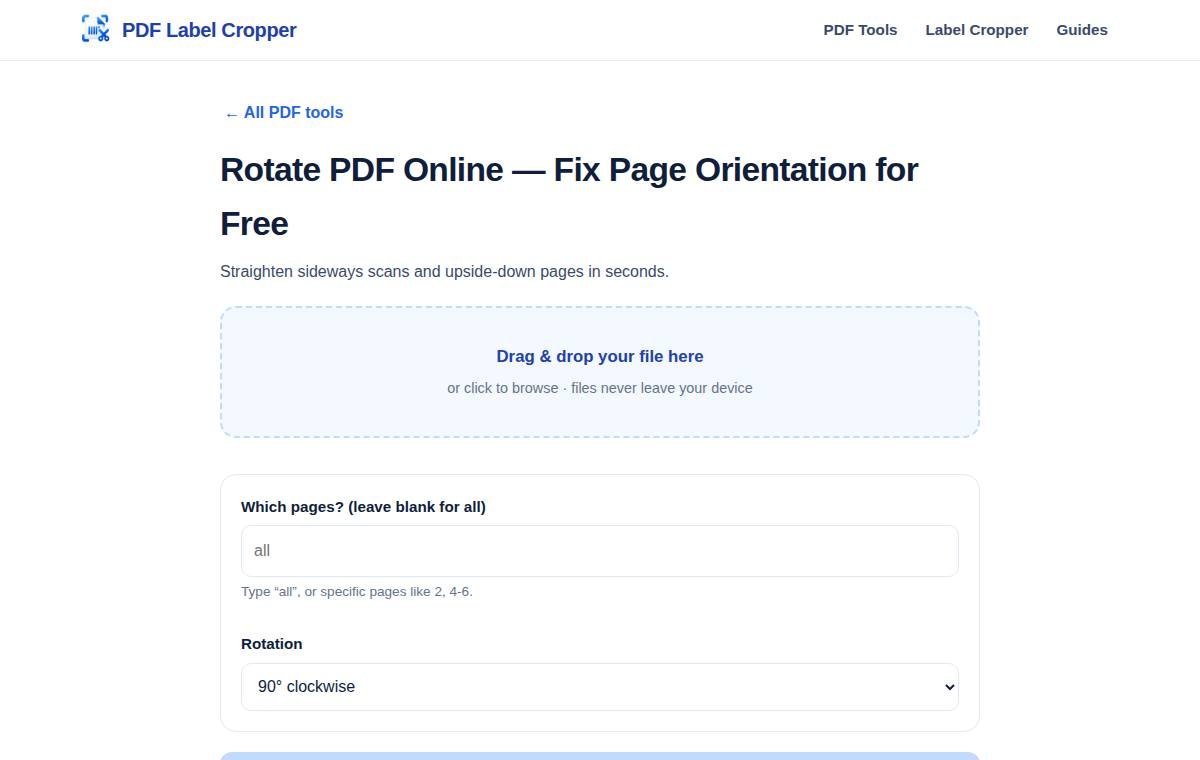
- Open the Rotate PDF tool in your browser — desktop or mobile, nothing to install.
- Upload the sideways PDF. Drag it in or tap to browse. The file is read entirely on your device.
- Say which pages to rotate. Leave the "Which pages?" box blank (or type all) to rotate the whole document, or type specific pages like 2, 4-6 if only some pages are wrong — untouched pages stay exactly as they are.
- Choose the rotation. A page lying on its side needs 90° (clockwise or counter-clockwise, depending on which way it lies); an upside-down page needs 180°. If you're unsure, try 90° clockwise first — it's the most common fix.
- Press "Rotate PDF" and download the corrected file. Open it to confirm every page now reads upright.
How to rotate only some pages of a PDF
Whole-document rotation is the easy case. The trickier - and more common - case is a document where most pages are fine and a few are wrong. Maybe pages 1-10 are upright but the scanned annexures from page 11 onward are sideways, or a single wide table in the middle of a report is rotated.
The fix is selective rotation: type only the misbehaving page numbers in the “Which pages?” box and rotate just those. The rest of the document is untouched. This is also how you handle mixed-orientation documents properly - rotate the portrait pages that are sideways without disturbing the landscape pages that are supposed to be wide.
Which way should each page turn?
- Text reads bottom-to-top (lying on its left side): rotate 90 degrees clockwise.
- Text reads top-to-bottom (lying on its right side): rotate 90 degrees counter-clockwise.
- Text is upside down: rotate 180 degrees.
- Still not sure: rotate 90 degrees clockwise, open the result, and adjust if needed. It takes two seconds and there is no penalty for trying.
Everyday cases where rotating a PDF fixes the file
- KYC and application scans: Aadhaar, PAN, and marksheet scans uploaded to job portals, bank sites, and government forms get rejected - or flagged for manual review - when they are sideways. Rotating takes ten seconds and avoids days of back-and-forth.
- Scanned books and notes: second-hand scan PDFs of textbooks and coaching material often have whole chapters sideways from a careless bulk scan. Rotate once and the entire file becomes readable.
- Receipts and bills: expense-report PDFs assembled from phone photos frequently mix orientations. Straighten them before sending to your accounts team or uploading to a reimbursement portal.
- Property and legal documents: sale deeds and agreements are often scanned in a hurry at the registrar's office. A rotated copy is far easier to read - and to get signed digitally - than a sideways one.
- Presentations exported oddly: slides exported to PDF sometimes come out rotated relative to the speaker notes or handouts. Fix the orientation before distributing.
Rotating vs. rescanning: which is better?
If the original paper is in your hands and the scan is badly crooked (not just rotated 90 degrees, but tilted at a random angle), rescanning properly is the better fix - rotation only turns pages in 90-degree steps and cannot straighten a 7-degree tilt. But when the original is not available, when only the orientation flag is wrong, or when a file someone sent you needs fixing now, rotating the PDF is the right call: it is instant, lossless, and does not require the source document.
What if the page is tilted, not just sideways?
Rotation turns pages in 90-degree steps, which fixes orientation but not crookedness. If a scan is tilted by a few degrees - text sloping gently uphill - rotating will not straighten it, and no rotation setting can. For mildly tilted pages, most readers tolerate it; the text is still perfectly legible. For badly skewed scans where lines visibly slope, the real fix is a deskew: many free scan apps and most scanner software have an auto-straighten option, so run the pages through that first, then rotate the resulting PDF if the orientation is still off. When the original paper is long gone and the tilt is mild, accept it: a slightly slanted but upright page beats a perfectly straight sideways one every time.
Common problems when you rotate a PDF (and how to fix them)
- The rotation did not stick: some PDF viewers remember your view rotation separately from the file. If you rotated in a viewer and it reverted, that is a view setting, not a file change. Use a proper rotation tool that rewrites the file, then reopen it fresh.
- Only some pages rotated: you selected a subset of pages. Go back, select all the pages that need turning, and rotate the batch together.
- The file is password-protected: locked PDFs cannot be modified until unlocked. Open the file with its password in a reader, save an unlocked copy, then rotate that.
- It still opens sideways on someone else's computer: they may be viewing a cached copy. Ask them to re-download the fixed file rather than opening the old attachment.
- The pages were upside down, not sideways: that needs 180 degrees, not 90. Run the rotation again with the 180-degree option on the same pages.
Your files stay on your device
Rotation is often needed on personal documents - ID scans, financial papers, legal files. The tool above performs the rotation entirely in your browser, so your file is never uploaded to a server or stored anywhere. That is the property to insist on in any free PDF tool: if rotating requires sending your document to someone's cloud, pick a different tool.
Once your pages are upright, you may want to reorder or delete pages, shrink the file for uploading, or rebuild it from fresh scans if the quality is poor.
Frequently asked questions
How do I rotate a PDF online for free?
Upload the PDF to the Rotate PDF tool, select the pages that need turning, choose 90 or 180 degrees, and download the corrected file. It is free with no signup.
Why is my PDF sideways?
Usually because of how it was created - a scanner fed pages in landscape, a phone held at an angle during scanning, or a camera orientation flag the PDF creator ignored. The content is fine; only the page rotation setting is wrong.
Can I rotate just one page of a PDF?
Yes. Type just that page number in the “Which pages?” box (e.g. 4) and choose your rotation — the rest of the document is left exactly as it is.
How do I save a PDF after rotating it?
Download the rotated file from the tool and replace the old one. The rotation is written into the file itself, so it opens correctly everywhere.
Will rotating a PDF reduce its quality?
No. Rotation only changes the page orientation setting - the content is untouched, so quality is identical.
Can I rotate a scanned PDF?
Yes. Scanned pages rotate just like any other pages, since rotation turns the whole page including the scanned image.