
How to Delete, Rearrange and Reorder Pages in a PDF
Your PDF is almost right: page 7 belongs after page 3, there's a blank page stuck in the middle, and the last two pages are duplicates from a bad scan. You don't need Adobe Acrobat — reorganizing PDF pages is a two-minute job with a free online tool. Here's exactly how to delete, rearrange, and reorder pages in a PDF.
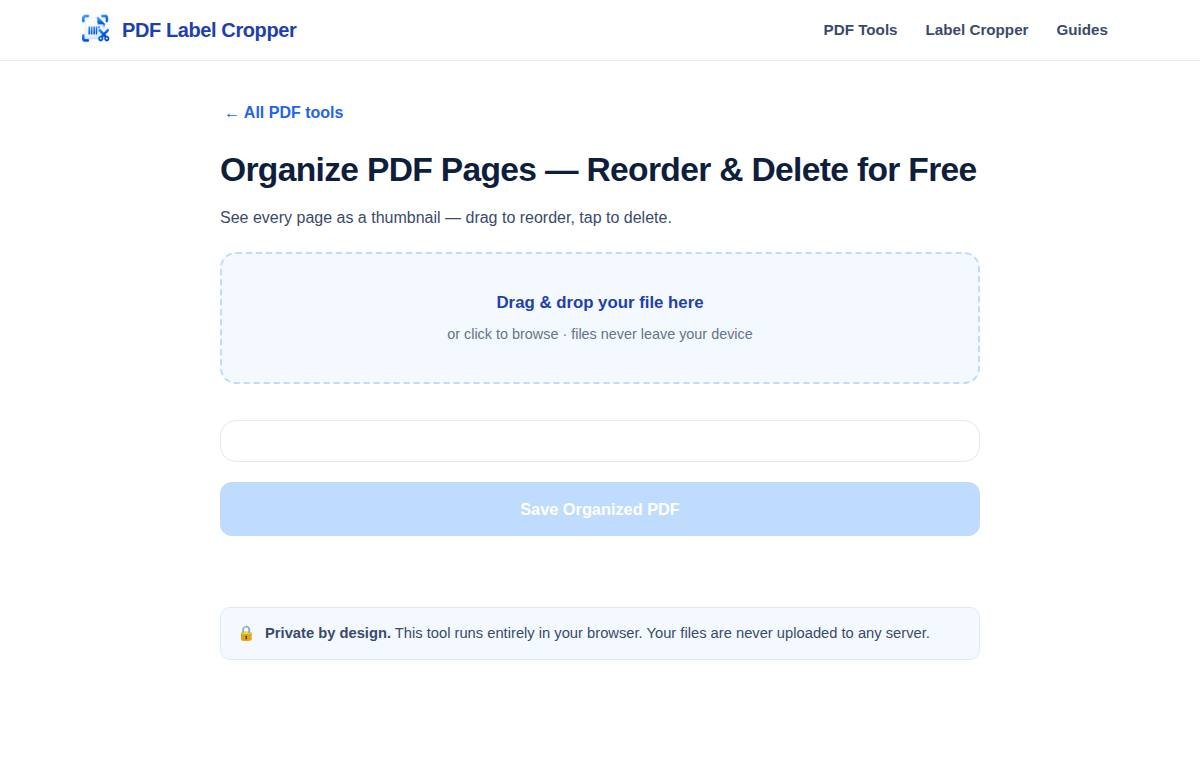
What "organizing" a PDF means
Three common fixes, one tool:
- Delete pages — remove blanks, duplicates, or pages you don't want to share.
- Reorder pages — drag pages into the right sequence (that mis-scanned page 7 goes where it belongs).
- Rotate individual pages — if one page came out sideways while the rest are fine.
The free Organize PDF tool shows every page as a thumbnail you can drag, delete, and rotate before saving a clean new file.
Step-by-step: organize your PDF pages
- Open the Organize PDF tool and upload your PDF. Every page appears as a thumbnail in order.
- Delete unwanted pages: hover (or tap) a thumbnail and hit the delete icon. Blank pages, duplicates, and mistakes — remove them all now.
- Reorder by dragging: drag thumbnails into the correct sequence. The page numbers update as you go, so you can verify the order visually.
- Fix sideways pages: if any single page is rotated wrong, rotate just that thumbnail instead of the whole document.
- Save: hit the save/export button to build your new PDF with only the pages you want, in the order you want. Download it.
Real situations this fixes
- Scanned documents: scanners love inserting blank pages and duplicating sheets. Delete them in seconds.
- Job applications: merge your resume, cover letter, and certificates with Merge PDF, then reorder so the resume is first.
- Sending excerpts: a 60-page report where only pages 5–9 matter? Delete the rest and send a tight 5-page file instead of the whole thing.
- Photo PDFs: a scanned album in the wrong order becomes a proper sequence with drag-and-drop.
Delete vs. extract: which do you need?
If you want to remove a few pages and keep the rest, organize (delete) is right. If you want to pull out a few pages as their own separate file, use the Split PDF tool instead — it's built for extracting page ranges into new documents. And if whole pages are sideways, the Rotate PDF tool fixes the entire document at once.
Troubleshooting
- Thumbnails won't load: very large PDFs (hundreds of pages) take a moment to render previews. Give it 10–20 seconds; if it still stalls, split the file into smaller chunks first.
- Drag doesn't work on my phone: use touch-and-hold for half a second before dragging — that distinguishes a drag from a scroll on touchscreens.
- File size grew: reorganizing shouldn't change size much. If the output is much bigger, the original had optimized images; run it through Compress PDF afterwards.
Frequently asked questions
How do I delete pages from a PDF for free?
Open the free Organize PDF tool, upload your file, click the delete icon on each unwanted page thumbnail, and save. No account or payment needed.
Can I rearrange the order of pages in a PDF?
Yes — the organizer shows pages as thumbnails you drag into any order, then exports a new PDF in that sequence.
How do I remove blank pages from a scanned PDF?
Upload it to the Organize PDF tool, scroll through the thumbnails, delete every blank page, and save. For large scans, deleting blanks can noticeably shrink the file.
Can I rotate just one page instead of the whole PDF?
Yes. The organizer lets you rotate individual page thumbnails, while the Rotate PDF tool rotates every page at once.
Will organizing a PDF reduce its quality?
No — deleting and reordering pages doesn't touch the content of the remaining pages, so quality is unchanged.
Is it safe to upload a confidential PDF to reorganize?
This tool processes everything locally in your browser, so your document never leaves your device. That's the safest possible setup for sensitive files.
Related tools
Organize PDF
See every page as a thumbnail — drag to reorder, tap to delete.
Merge PDF
Combine two or more PDF files into a single document, in whatever order you choose.
Split PDF
Pull individual pages or page ranges out of a PDF into brand-new files.
Rotate PDF
Straighten sideways scans and upside-down pages in seconds.
Compress PDF
Shrink oversized PDFs so they're easy to email, upload, and share.