
How to Extract Text from a PDF (Copy Text or Save as TXT)
You need the words inside a PDF — a paragraph for a report, the text of your own resume, terms from a contract — and copy-paste is giving you mangled garbage. Lines break mid-sentence, columns get interleaved, and half the characters turn into boxes. Extracting text from a PDF properly takes about thirty seconds when you use the right approach. Here's how.
Why copy-paste from PDFs goes wrong
A PDF doesn't store text the way Word does. It stores positioned glyphs: this character goes at these coordinates, that one goes there. When you drag-select and copy, your PDF reader guesses the reading order — and guesses badly whenever the layout has columns, tables, headers, footers, or text boxes. The result is technically all the words, in the wrong order, with line breaks in the middle of sentences.
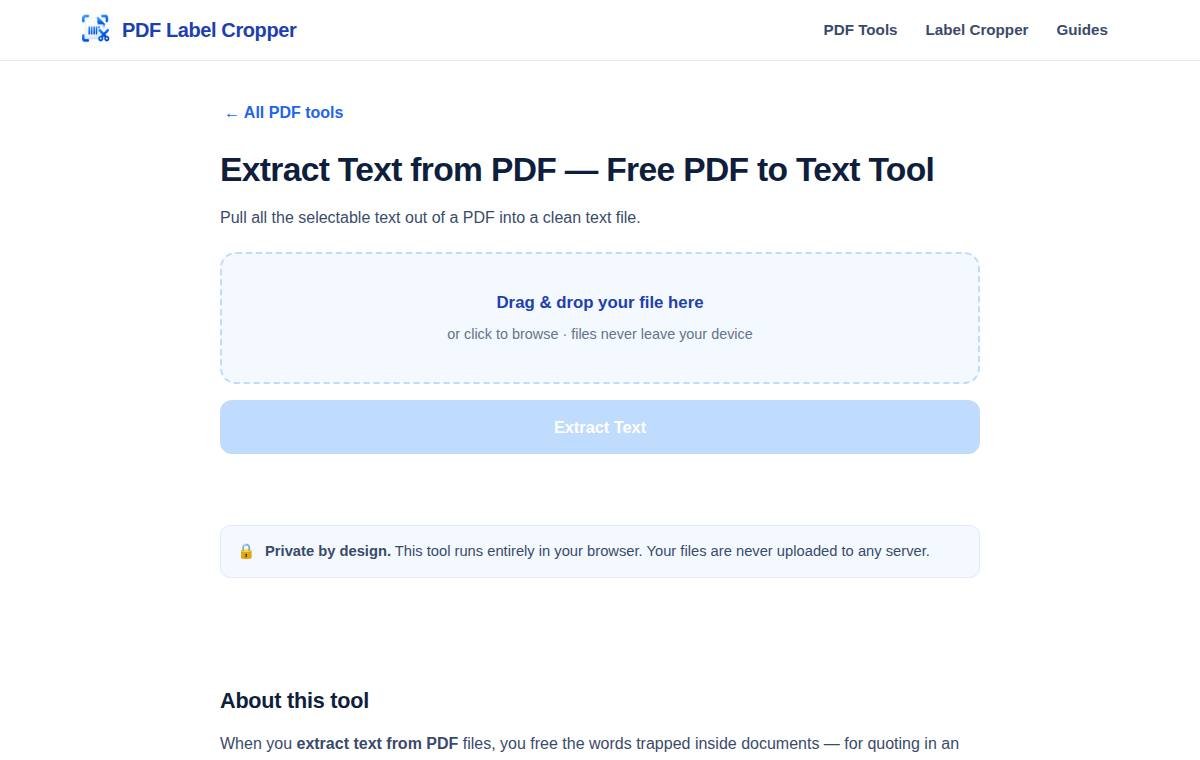
A proper text extractor reads the PDF's text layer page by page and outputs it as clean, continuous text you can actually reuse. That's what the free Extract Text tool does, entirely in your browser.
Step-by-step: extract text from a PDF
- Open the Extract Text tool and drop your PDF onto the upload area (or tap to browse — it works on phones too).
- Wait a moment while the tool reads the document. A 50-page PDF usually takes a few seconds.
- Review the extracted text in the preview pane. It's organized page by page, so you can check that nothing important was missed.
- Copy what you need with the copy button, or download the whole thing as a .txt file for use in Word, Google Docs, or anywhere else.
Cleaning up extracted text
Extracted text is faithful, not pretty. Expect these quirks and how to handle them:
- Hyphenated line breaks ("docu- ment") — a quick find-and-replace of "- " or "-\n" fixes most.
- Headers and footers repeated on every page — delete them in one pass once you spot the pattern.
- Tables become linear text — columns run together. For heavy table work, you're better off retyping or using the PDF to JPG tool to screenshot the table as an image.
- Weird characters (� or boxes) — the PDF used a font without proper Unicode mapping. Try a different PDF reader's copy as a fallback, or re-export the source document if you have it.
The scanned-PDF problem (read this before you start)
Here's the honest limitation: if your PDF is a scan — photos of pages, not real text — there is no text layer to extract. The tool will return little or nothing, and that's correct behavior, not a bug. Scanned PDFs need OCR (optical character recognition), which reads the image and guesses the letters.
How to tell: try selecting text in your PDF reader. If you can highlight individual words, it's a real text PDF and extraction will work. If the whole page selects as one big image, it's a scan. For scans, use your phone's built-in OCR (Google Lens, or iOS Live Text in the Photos app) or a dedicated OCR tool, then paste the result into a document.
What people use extracted PDF text for
- Students: pulling quotes and references from journal articles into notes.
- Job seekers: reusing their own resume text when a portal asks for plain-text paste.
- Sellers and accountants: grabbing line items from invoices and statements.
- Writers: recovering text from a PDF when the original Word file is long gone.
Troubleshooting
- "No text found": it's almost certainly a scanned/image PDF (see above). Nothing is broken — there's just no text layer.
- Text is out of order: multi-column layouts confuse every extractor. Extract, then rearrange the paragraphs manually — still far faster than retyping.
- Password-protected PDF: unlock it first (you'll need the password — we can't bypass encryption, and neither should any legitimate tool).
Need the pages as images instead of text? Use the PDF to JPG converter. Need to combine documents first? Merge PDFs before extracting.
Frequently asked questions
How do I extract text from a PDF for free?
Open the free Extract Text tool, upload your PDF, and copy the text from the preview or download it as a .txt file. No signup, no watermarks — the whole thing runs in your browser.
Why can't I copy text from my PDF?
Either the PDF is a scanned image with no text layer (needs OCR, not extraction), or it's copy-protected by the author. Try selecting text: if individual words highlight, extraction will work.
Can I extract text from a scanned PDF?
Not with a text extractor — scans contain images, not text. Use OCR software (Google Lens, Adobe Scan, or your phone's built-in text recognition) to convert the image to text first.
Will extraction keep the formatting?
No — you get clean plain text, not fonts, colors, or layout. For layout preservation, convert with PDF to JPG instead, or keep the original PDF.
Is it safe to extract text from a confidential PDF online?
With this tool, yes: extraction happens entirely inside your browser, so the document never leaves your device. Avoid random sites that upload your file to their servers.
Can I extract text from only some pages?
The tool extracts the full document as text organized by page — copy just the pages you need from the preview, or split the PDF first with the Split PDF tool and extract from the smaller file.